 LayMesh
Presentation and multipage playback#
Animation manual · Export and troubleshooting
Preview and presentation#
Default preview shows the full static layout. Preview controls play, pause, replay, seek and restore Static. The toolbar shows one Present button, which starts fullscreen directly. Its dropdown offers Windowed presentation. Escape or leaving browser fullscreen ends the presentation and returns directly to the regular preview. VS Code offers embedded and browser presentation.
Click the regular preview to start animation; it shares presentation context menus, arrow keys, Space and wheel navigation. On initial preview display, even a first step with start="after-previous" retains the complete static layout until a click starts entry. Subsequent after-previous links, delays, holds and automatic page transitions run normally. Dragging pans without advancing.
Presentation defaults to manual advancement, while a first after-previous step runs automatically on formal entry. For manual steps, first advance executes the first step; another advance during playback completes it and holds; the next advance executes the next step. Pages advance after all steps. after-previous links run automatically; cross-page Auto is a menu setting. Pages without animation advance directly, with a default 1s automatic hold.
Controls and shortcuts#
| Input | Behavior |
|---|---|
| Click, Space, Enter, Right/Down, PageDown, N | Advance or complete current step |
| Left/Up, PageUp, Backspace, P | Previous step boundary; previous page from page start |
| Wheel down/up | Advance/back; continuous gesture is combined |
| Digits then Enter | Jump to page |
| Home / End | First initial state / last completed state |
| S | Pause/resume |
| F | Fullscreen / exit fullscreen |
| B / W | Black/white screen; repeat to restore |
| Tab | Show controls and focus buttons |
| Right click | Presentation menu |
| Esc | Close menu; end formal presentation and return to preview; restore Static in preview |
The menu exposes Auto, speed, time, pages and control visibility. Controls can always show, show when the pointer reaches their area, or stay hidden; Tab remains available. Menus pause the clock and restore its previous state on closing. Backgrounding pauses; resume manually.
Wheel navigation applies only inside the presentation canvas; menus retain scrolling. Horizontal/modified scrolling and keyboard auto-repeat do not repeatedly advance.
Multiple pages#
.laydoc uses the Lay DSL to sequence independent .lay pages, each with its own size, resources, units, styles and steps.
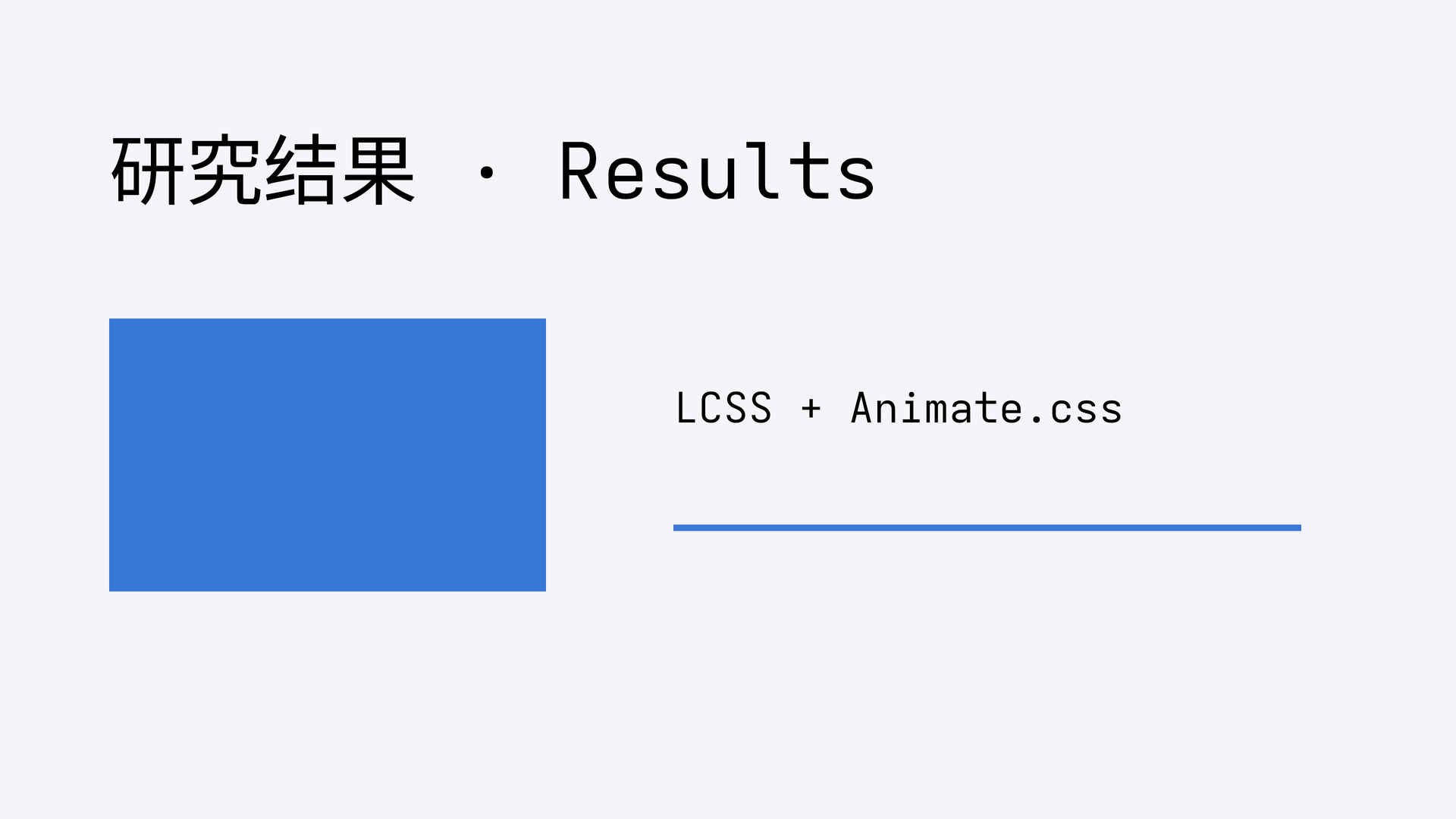
doc = document(name="LCSS animation presentation")doc.add(page(src="presentation.lay", name="入场与翻转"))doc.add(page(src="second.lay", name="区域揭示"))/* Original Animate.css 4.1.1, imported without rewriting. */@import "@laymesh/animate.css";.title-motion { --animate-duration: 800ms; }.draw-motion { animation: laymesh-draw 1200ms ease both; }.reveal-motion { animation: laymesh-reveal 1s ease both; }page = canvas(size=(160mm, 90mm), stylesheet="motion.lcss", background="#f4f5f9")title = page.add(text("研究结果 · Results", class="title-motion", font_size=24pt), offset=(12mm, 12mm))card = page.add(rect(size=(48mm, 30mm), fill="#3978d4", border_color="none"), offset=(12mm, 35mm))label = page.add(text("LCSS + Animate.css", font_size=13pt), offset=(74mm, 42mm))curve = page.add(line(length=69mm, line_color="#3978d4", line_width=2pt), offset=(74mm, 58mm))s1 = page.step(name="标题入场 · Title", hold=1s)s1.animate(title, class="animate__animated animate__fadeInUp")s2 = page.step(name="三维翻转 · Flip", hold=1s)s2.animate(card, class="animate__animated animate__flipInY")s2.animate(label, class="animate__animated animate__fadeInRight", delay=200ms)s3 = page.step(name="描线 · Draw", hold=1s)s3.animate(curve, class="draw-motion")s4 = page.step(name="强调 · Emphasis", hold=1s)s4.animate(title, class="animate__animated animate__pulse", duration=600ms)page = canvas(size=(100mm, 100mm), stylesheet="motion.lcss", background="#eef5f2")title = page.add(text("第二页 · Page 2", font_size=20pt), offset=(12mm, 18mm))card = page.add(rect(size=(55mm, 40mm), fill="#2e8b69", border_color="none"), offset=(20mm, 40mm))s1 = page.step(name="区域揭示 · Reveal", hold=1s)s1.animate(title, class="animate__animated animate__fadeIn")s1.animate(card, class="reveal-motion", delay=200ms)Preview
Dependencies
examples/animation/motion.lcssexamples/animation/presentation.layexamples/animation/presentation.laydocexamples/animation/second.lay
See Documents for page references, stable IDs and export selection. Auto advances after windows and holds; the last completed page stays visible.
Preparation, failure and exit#
The first ready page can present while later pages prepare. Jumping to an unready page retains the current image and pauses until its first frame is ready. Failure reports page and source location with retry/cancel.
Presentation fixes the current document version; edits apply after exit. Exit restores original static geometry, selected page, zoom, scroll and focus. Screens fit at the original aspect ratio without stretching or cropping.
VS Code browser presentation uses a temporary session service bound to Tailscale; closing the session releases it. Choose embedded presentation for local-only use. Font, GPU, cache and measurement details belong in Implementation and verification.
Page transitions provides 125 configurable effects, including page curl.